
Consider how a typical marketing day begins. A new lead submits a contact form on your website. You copy the name and email into your CRM. You switch to your email platform and manually add them to the welcome sequence. You open a spreadsheet and log the lead source. You send a quick Slack message to the sales team. By the time you have finished doing all of this for one lead, three more have come in. By the end of the day, you have spent two hours on data entry that produced zero creative output, zero strategic thinking, and zero direct value for your customers.
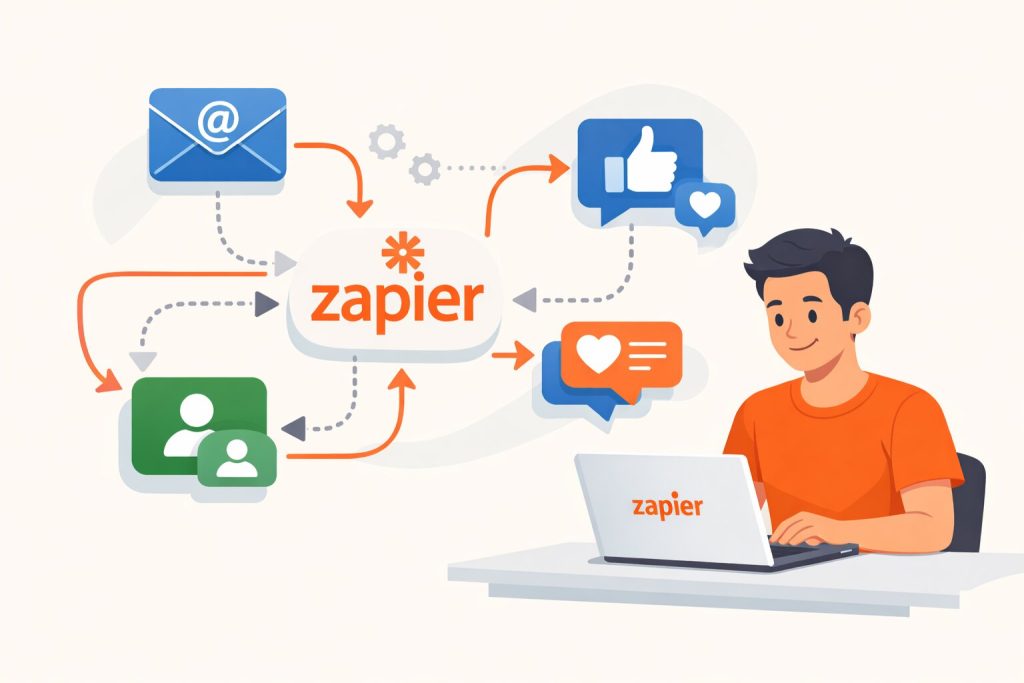
This is the problem that Zapier was built to solve. Not the big, complex automation challenges that require developers and enterprise software budgets, but the everyday, repetitive, rule-based tasks that fragment a marketer’s attention and drain hours from the work that actually matters. Zapier connects the apps you already use and makes them act together automatically, triggering actions in one tool whenever something specific happens in another, without any manual input in between.
Since its launch in 2011, Zapier has grown into one of the most widely used automation platforms in the world, connecting over 6,000 apps and serving millions of users across businesses of every size. Its appeal to marketers specifically is not hard to understand: marketing is, by nature, a multi-tool discipline. The average marketing team uses email platforms, CRM systems, social media management tools, advertising dashboards, analytics platforms, landing page builders, webinar tools, and form software – often simultaneously, often with no native connection between them. Zapier is the integration layer that makes these disconnected tools function as a coherent, automated system.
This guide walks through everything a marketer needs to know to start using Zapier effectively: how it works, where it delivers the most value in a marketing context, how to build a first automation from scratch, the best practices that separate reliable workflows from error-prone ones, and honest answers to the most common questions. No technical background required.
What Is Zapier and How Does It Work?
Before building anything in Zapier, it helps to understand the three concepts that underpin every automation on the platform. They are simple, and once they click, the rest of Zapier becomes intuitive.
Zaps, Triggers, and Actions
A Zap is Zapier’s name for an automated workflow. Every Zap is built around two essential components: a Trigger and an Action. The Trigger is the event in one app that starts the workflow. The Action is what Zapier automatically does in another app as a result. The relationship is always causal: when this happens, do that.
A practical example makes this concrete. Suppose you use Typeform to collect leads on your website and Mailchimp to manage your email list. You want every new Typeform submission to automatically create a subscriber in Mailchimp. In Zapier’s language: the Trigger is “New Entry in Typeform” and the Action is “Add Subscriber in Mailchimp”. Once you build and activate this Zap, every form submission triggers the action automatically – 24 hours a day, including weekends and holidays, with no manual step in between.
What makes Zapier considerably more powerful than this single example suggests is the ability to add multiple Actions to a single Trigger. That same Typeform submission could simultaneously add the contact to Mailchimp, create a deal in HubSpot, append a row to a Google Sheet, and send a Slack notification to your sales team – all in one Zap, all from a single form submission, all without touching a keyboard.
Filters and Multi-Step Workflows
Two features elevate Zapier from basic automation to genuinely intelligent workflows. The first is Filters. A Filter is a conditional rule that tells a Zap to continue only if specific criteria are met. Without Filters, a Zap fires for every matching trigger event – including test submissions, internal team entries, and edge cases the workflow was not designed to handle.
With Filters, you can build precision into the logic. For example: “Only continue this Zap if the form respondent answered ‘Yes’ to the question: Are you a business owner?” This single condition transforms a general lead capture Zap into a qualified lead routing workflow. Filters are available on Zapier’s paid plans and are one of the most valuable features for marketers who need their automations to behave intelligently rather than indiscriminately.
The second feature is multi-step Zaps, which allow a single workflow to chain several actions together in a defined sequence. A multi-step Zap might: capture a new Facebook Lead Ad submission, check a Filter to confirm the lead meets a qualifying criterion, add the contact to a CRM, enrol them in an email nurture sequence, and notify the sales team via Slack – all in a single automated workflow that runs without human involvement from start to finish.
Zapier’s App Ecosystem and Pricing
Zapier’s integration library spans over 6,000 applications, covering virtually every tool in a modern marketing stack. The platforms most relevant to marketing teams include email marketing tools such as Mailchimp, ActiveCampaign, Klaviyo, and ConvertKit; CRM platforms including HubSpot, Salesforce, and Pipedrive; form and survey tools like Typeform, Jotform, and Google Forms; social media management tools including Buffer, Hootsuite, and Later; advertising platforms such as Facebook Lead Ads and LinkedIn Lead Gen Forms; productivity and communication tools including Slack, Google Sheets, Notion, and Airtable; and e-commerce platforms such as Shopify and WooCommerce.
Zapier’s free plan includes up to 100 tasks per month and supports single-step Zaps only. Paid plans begin at approximately $19.99 per month (Starter tier) and unlock multi-step Zaps, Filters, and significantly higher task volumes. For most marketing teams running active automated workflows, a paid plan is necessary. Task pricing scales with usage, so it is worth estimating your likely monthly task volume before selecting a plan. Current pricing should always be verified directly on Zapier’s website, as plans and prices change.
Top Marketing Use Cases for Zapier
Zapier delivers value across a wide range of marketing functions, but some use cases produce a disproportionately large return on the time invested in building them. The following six represent the highest-impact starting points for most marketing teams.
Lead Capture and CRM Synchronisation
The gap between a lead arriving and the CRM being updated is one of the most common sources of lost revenue in marketing operations. Leads arrive through multiple channels simultaneously – website forms, landing pages, Facebook Lead Ads, LinkedIn Lead Gen Forms, event registrations, webinar sign-ups – and manually transferring each one into the CRM is slow, inconsistent, and always slightly delayed. In the time it takes to export a CSV from Facebook and import it into HubSpot, a lead that could have received a personalised response within minutes has gone cold.
Zapier eliminates this gap entirely. A Zap that connects a Facebook Lead Ad to HubSpot, Mailchimp, and a Slack sales notification channel means every new lead is in the CRM, on the email list, and in front of the sales team within seconds of submitting the form – regardless of the time of day, the day of the week, or what else is happening in the business. The consistency and speed of this response is not just operationally convenient; it is a direct commercial advantage, because research on lead follow-up consistently shows that the probability of qualification decreases significantly with every hour of delay.
Email Marketing Automation
Most email marketing platforms have strong native automation capabilities within their own ecosystem, but their trigger options are limited to events that occur inside the platform itself – a new subscriber, a link click, a specific tag applied. Zapier expands the universe of what can trigger an email sequence by bridging the gap between your email platform and every other tool in your stack.
An e-commerce brand using Shopify and ActiveCampaign, for example, can use Zapier to enrol customers in a post-purchase sequence the moment an order is confirmed in Shopify – something that ActiveCampaign’s native Shopify integration may handle, but which Zapier makes possible for any combination of e-commerce and email platform, not just officially supported pairs. More powerfully, Zapier can trigger email sequences based on events in tools that have no native email integration at all: a demo booked in Calendly, a webinar attended in Zoom, a support ticket resolved in Zendesk, or a score threshold crossed in a lead scoring model stored in a spreadsheet.
Social Media Scheduling and Content Distribution
Publishing new content across multiple social platforms is a task that many marketing teams handle manually, one platform at a time, every time a new piece of content is published. For a team managing a blog, a LinkedIn company page, a Twitter account, and a Facebook page, each new blog post can require four separate manual actions – each with its own login, its own character limit consideration, its own optimal posting time.
Zapier makes it possible to trigger a coordinated content distribution sequence from a single publishing event. When a new post is published on WordPress, a Zap can automatically create a scheduled post in Buffer for LinkedIn, generate a tweet draft for review, and send a notification to the content team’s Slack channel confirming the post is live and the distribution sequence has been initiated. The important nuance here is that Zapier handles the triggering and routing of content distribution efficiently, but it does not tailor copy for each platform – teams that need platform-specific messaging should build separate Zaps per channel, or use Zapier alongside a tool like Buffer that allows platform-specific scheduling.
Webinar and Event Follow-Up
Post-event follow-up is one of the most time-sensitive and most commonly dropped balls in marketing operations. A webinar that generates 300 registrants creates an immediate expectation: attendees want a recording, a summary, or next-step resources within 24 hours. Non-attendees who were interested enough to register represent warm leads that need a different, softer nurture path. Manually segmenting these two groups, enrolling them in the appropriate email sequences, and creating follow-up tasks for the sales team for the most engaged attendees is a significant manual workload that often happens days after the event – by which time the engagement window has narrowed considerably.
Zapier automates the entire follow-up architecture. When an event ends in Zoom Webinars or Eventbrite, the platform’s attendance data can trigger separate Zaps for attendees and no-shows, enrolling each group in the appropriate email sequence automatically, creating CRM tasks for high-value leads flagged by engagement data, and sending a summary notification to the sales team – all within minutes of the event concluding.
Analytics and Reporting Aggregation
Marketing performance data is typically scattered across a dozen different platforms, none of which talk to each other natively. Assembling a coherent weekly performance report from Google Analytics, Facebook Ads Manager, email campaign data, and CRM pipeline metrics is a manual aggregation task that can consume hours of a marketer’s time every week without producing any new strategic insight – just consolidating numbers that already exist in other places.
Zapier can automate a meaningful portion of this aggregation by routing key metrics from individual platforms into a centralised Google Sheet or Airtable database on a scheduled basis. A daily Zap that pulls key campaign metrics from an email platform and appends them to a shared spreadsheet, combined with a weekly Zap that sends a formatted summary of that data via Gmail, creates a lightweight performance dashboard that updates itself – freeing the marketing team to spend their reporting time on analysis rather than data collection.
Paid Social Lead Capture
Facebook Lead Ads and LinkedIn Lead Gen Forms are among the highest-performing lead generation tools in digital marketing, but they come with a significant operational limitation: the leads they generate are stored inside the advertising platform’s own lead database and must be manually exported – usually as a CSV – and then imported into the CRM. In a busy marketing team, this export-import cycle might happen daily, or twice a week, or whenever someone remembers. In the meantime, leads generated by paid campaigns are sitting in a Facebook interface, unreachable by the email sequences and CRM workflows the team has built to nurture them.
Zapier’s native integrations with both Facebook Lead Ads and LinkedIn Lead Gen Forms make it one of the fastest and most reliable ways to get paid social leads into a CRM and email list in real time. The moment a prospect submits a lead form on LinkedIn, a Zap can create a HubSpot contact, enrol them in an appropriate email sequence, and send a personalised welcome email – all within seconds, with no manual export in sight.
Step-by-Step: How to Build Your First Marketing Zap
The following walkthrough builds a practical, immediately useful marketing Zap from scratch: a workflow that takes a new Typeform submission, adds the contact to a Mailchimp audience, and sends a notification to a Slack channel. This Zap covers the core mechanics – trigger setup, authentication, field mapping, multi-step actions, testing, and publishing – and the same process applies to virtually any Zap you build afterwards.
Step 1: Create Your Zapier Account and Open the Zap Editor
Navigate to zapier.com and create a free account. Once logged in, click the orange “+ Create” button in the left sidebar and select “Zaps” from the dropdown. This opens the Zap editor – the visual interface where you build and configure your workflow. The editor presents a sequential canvas with empty trigger and action steps waiting to be filled. Zapier offers a brief onboarding tour on first use; it is worth completing for a quick orientation to the interface.
Step 2: Configure the Trigger
Click the Trigger step. In the search bar, type “Typeform” and select it from the app list. Under “Trigger Event”, choose “New Entry”. This tells Zapier to watch for new form submissions. Click “Continue” and then “Sign in to Typeform” to connect your Typeform account. Zapier will open an authentication popup asking you to log in to Typeform and grant permission for the connection. Once authenticated, return to the Zap editor and select the specific form whose submissions should trigger this Zap from the dropdown list. If you manage multiple forms, make sure to select the correct one.
Step 3: Test the Trigger
Zapier needs a sample submission to understand what data your form produces and to make those data fields available for mapping in subsequent steps. Click “Test trigger”. Zapier will retrieve the most recent submission from your selected form. If the form has no existing submissions, you will need to submit a test entry first, then return and run the test. Once the test succeeds, you will see the form fields and their values displayed – first name, last name, email address, phone number, any custom question answers, and submission timestamp. These fields are now available to map to fields in your action apps.
Step 4: Add the First Action – Mailchimp
Click the “+” button below the trigger to add an Action step. Search for “Mailchimp” and select it. Under “Action Event”, choose “Add/Update Subscriber”. Authenticate your Mailchimp account using the same OAuth process as Typeform. Once connected, you will see the field mapping interface – this is where you tell Zapier which data from the Typeform submission maps to which field in Mailchimp.
Select your target Mailchimp audience from the dropdown. Then map the fields: set “Email Address” to the email field from your Typeform data, “First Name” to the first name field, and “Last Name” to the last name field. Field mapping is the step where most first-time users encounter confusion – the key is to use the dynamic data icons (the dropdown or plus button next to each field) to select the Typeform data, rather than typing values manually. Typing a value manually creates a static field that sends the same text for every submission. Selecting dynamic data sends the actual value from each individual form response.
Step 5: Add the Second Action – Slack
Click “+” again to add a second action step. Search for “Slack” and select it. Choose “Send Channel Message” as the action event. Authenticate your Slack workspace. Select the channel where the notification should be sent – for example, #marketing-leads or #sales-notifications. In the message body field, compose a notification using a mix of static text and dynamic Typeform data. A useful format: “New lead: [First Name] [Last Name] ([Email Address]) submitted the contact form.” Use the dynamic data selector to insert the Typeform fields into the appropriate places in the message. This produces a personalised, readable notification for every new submission.
Step 6: Test and Publish
With both action steps configured, click “Test step” on each action to run a live test. Zapier will execute the actions using the sample data from Step 3 – creating a test subscriber in Mailchimp and sending a test message to the selected Slack channel. Check both apps to confirm the test ran correctly: the subscriber should appear in your Mailchimp audience with the correct field values, and the Slack message should have arrived in the designated channel with the correct dynamic data populated. If either test fails, Zapier will display an error message identifying which field or configuration caused the issue.
Once both tests pass, click “Publish Zap”. The Zap is now live. From this point forward, every new Typeform submission will automatically trigger both actions – adding the contact to Mailchimp and sending the Slack notification – without any manual involvement. The Zap runs continuously in the background, processing submissions as they arrive, around the clock.
Best Practices for Marketing Automation with Zapier
Building a Zap is straightforward. Building automation that remains reliable, maintainable, and genuinely useful over time requires a few additional habits that most users develop only after encountering the problems these practices prevent.
Start With One High-Value Workflow
The most common mistake first-time Zapier users make is trying to automate everything at once. Inspired by the platform’s possibilities, they build ten Zaps in the first week before fully understanding how any of them work, and then spend the following month troubleshooting errors across workflows they only half-understand. The better approach is to identify the single most time-consuming, repetitive marketing task – the one that happens most frequently and requires the most manual steps – and automate that first.
Building one Zap well creates real, immediate time savings and builds the confidence and familiarity needed to approach more complex workflows with good judgement. A single well-maintained Zap that processes 50 leads a day reliably is worth more than ten poorly configured Zaps that occasionally misbehave and require constant monitoring.
Use Filters to Qualify Every Trigger
Without Filters, a Zap fires for every matching trigger event without discrimination. This creates problems that are not always obvious immediately. A lead capture Zap without a Filter will add every form submission to the CRM – including test submissions made by your own team during setup, spam entries from bots, and incomplete submissions from users who accidentally triggered the form. A social posting Zap without a Filter will distribute every new WordPress post – including drafts accidentally published, internal test posts, and pages that were never meant for social promotion.
Adding a Filter step immediately after the trigger is one of the most reliable habits in Zapier workflow design. Common marketing Filters include: “Only continue if the email address does not contain @yourcompany.com” (to exclude internal team test entries), “Only continue if the lead source equals Paid Social” (to restrict a specific routing Zap to the right lead type), and “Only continue if the post status equals Published” (to prevent draft WordPress posts from triggering distribution workflows).
Name Zaps Descriptively and Organise with Folders
A Zapier account with 15 active Zaps where every workflow is named “Zap” or “My Zap 3” is a maintenance problem waiting to happen. When a Zap misbehaves three months after it was built – by which time the original builder may have forgotten the details of its configuration – the first step in diagnosing the issue is understanding what the Zap is supposed to do. A name like “FB Lead Ads → HubSpot + ActiveCampaign + Slack (Q3 Campaign)” communicates trigger app, action apps, context, and campaign association at a glance.
Use Zapier’s folder feature to group Zaps by function, campaign, or team. Suggested folder structures for marketing teams include folders for Lead Capture, Email Marketing, Content Distribution, Reporting, and Events. This organisation pays dividends as the number of active Zaps grows and new team members need to navigate and maintain the automation library.
Monitor Task History and Enable Error Notifications
Zapier’s Task History records every Zap execution with its outcome – success or failure – and the data that was processed. Reviewing this log weekly for the first month after launching a new Zap is one of the most effective ways to catch unexpected behaviours before they create significant data gaps. Common issues that only appear in the Task History include field mapping errors that surface only for certain form responses, authentication failures caused by a connected app’s OAuth token expiring, and API rate limit errors on high-volume Zaps.
Enable email notifications for Zap errors in your Zapier account settings. This ensures that when a Zap fails, you are informed immediately rather than discovering the issue days later when someone notices that leads have not been reaching the CRM. Most Zap errors are quickly fixable once identified – the risk is not the error itself but the gap it creates if left undetected.
Document Your Automation as Institutional Knowledge
When a Zap is built, the person who built it holds all the contextual knowledge about its purpose, its logic, its dependencies, and its edge cases. This knowledge needs to exist somewhere beyond that person’s memory. A simple documentation habit – a shared Notion page, a Google Doc, or even a dedicated column in a team spreadsheet – that records each Zap’s name, purpose, trigger, action steps, any Filters applied, and notes on known edge cases becomes invaluable when team members change, when a Zap needs to be modified, or when something breaks and the original builder is no longer available to explain how it works.
Quick-Reference: Zap Ideas for Marketing Teams
The table below provides a ready-made reference of high-value Zap ideas across core marketing functions. Each row represents a starting point – the trigger and action apps can be swapped for equivalent tools in your own stack, and additional action steps can be added to any workflow as your automation confidence grows.
| Marketing Function | Trigger | Action(s) |
| Lead capture | New Facebook Lead Ad submission | Create HubSpot contact + send welcome email |
| List building | New Typeform submission | Add to Mailchimp audience + tag by source |
| Content distribution | New WordPress post published | Schedule Buffer post + share to LinkedIn Page |
| Webinar follow-up | New Eventbrite registrant | Enrol in ActiveCampaign sequence + create CRM task |
| E-commerce nurture | New Shopify order confirmed | Add to post-purchase email sequence |
| Sales alert | New qualifying form submission (filtered) | Send Slack alert + create CRM deal |
| Review generation | Deal marked Closed Won in CRM | Send automated review request via Gmail |
| Reporting | Scheduled daily trigger | Append campaign stats to Google Sheets dashboard |
| Team notification | New Google Analytics goal completion | Post alert to Slack marketing channel |
Frequently Asked Questions
Do I need coding skills to use Zapier for marketing?
No coding skills are required, and this is one of Zapier’s most important characteristics for marketers. The entire platform is built around a point-and-click interface designed for non-technical users. Building a Zap requires no programming knowledge, no understanding of APIs, and no developer involvement. The core skill needed is the ability to describe a workflow in plain English – when this happens in this app, do that in this other app – and the patience to work through the authentication and field mapping steps that translate that logic into an active automation. If you know your marketing tools well, you have everything you need to build effective Zaps.
Is Zapier free for marketing automation?
Zapier offers a free plan that includes up to 100 tasks per month and supports single-step Zaps only. For basic use cases – a single trigger connected to a single action – the free plan is genuinely functional. However, most marketing workflows benefit from multi-step Zaps and Filters, both of which require a paid subscription. The Starter plan begins at approximately $19.99 per month and covers the majority of use cases for small to mid-sized marketing teams. Costs scale with the number of tasks executed per month, so high-volume workflows running across large contact lists will require higher-tier plans. Always confirm current pricing at zapier.com, as Zapier adjusts its plan structure periodically.
How is Zapier different from the native integrations inside my marketing tools?
Native integrations connect specific pairs of apps within a platform’s own ecosystem and typically offer limited customisation of what triggers the integration and what data it passes between tools. Zapier connects any of its 6,000+ supported apps to each other with full control over trigger events, field mapping, filtering logic, and multi-step action chains. This flexibility is particularly valuable for marketing teams whose stack includes tools that do not have direct native connectors, or whose workflows require conditional logic and data transformation that native integrations do not support. Zapier also allows you to connect multiple apps in a single workflow, which most native point-to-point integrations cannot do.
How many Zaps should a marketing team run?
There is no universally correct number. The right answer depends on the team’s workflow complexity, the volume of tasks each Zap processes, and the team’s capacity to maintain and monitor its automation library. Most marketing teams benefit most from five to fifteen well-maintained, well-documented Zaps covering their highest-frequency repetitive tasks. The risk of having too many Zaps is not the subscription cost – it is the maintenance overhead. Each Zap needs periodic review, error monitoring, and documentation. Quality and reliability matter significantly more than quantity. Build deliberately, prioritise the highest-value workflows, and expand the automation library incrementally rather than all at once.
Can Zapier replace a dedicated marketing automation platform?
Zapier is not a replacement for a dedicated marketing automation platform, and it is not designed to be. Tools like HubSpot, ActiveCampaign, and Klaviyo provide native contact lifecycle management, sophisticated campaign logic, segmentation, A/B testing, detailed engagement analytics, and revenue attribution reporting that Zapier does not offer. Zapier’s strength is connecting tools together and automating the data handoffs between them. It is most accurately described as the integration and workflow layer of a marketing stack – the system that makes a collection of individual tools function as a coherent, automated operation. The most effective marketing operations use both: a dedicated automation platform for campaign management and Zapier for the cross-tool workflows and integrations the platform cannot handle natively.
What happens when a Zap fails?
When a Zap fails to execute successfully, Zapier logs the error in the Task History with a description of what went wrong and which step in the workflow caused the failure. If error notifications are enabled in account settings, Zapier also sends an email alert. The most common causes of Zap failure in marketing workflows are authentication expiry – the OAuth connection to a linked app has timed out and needs to be re-authenticated – field mapping errors caused by a form field being renamed or removed, and API rate limits on the receiving app when a Zap processes a high volume of tasks in a short time window. Most failures can be resolved by reviewing the error message in Task History, addressing the identified issue, and re-running the failed tasks from the Task History interface.
How do I know which marketing tasks are worth automating?
The best candidates for Zapier automation share three characteristics. First, they are repetitive: the task happens frequently, often multiple times per day, and its structure does not change meaningfully from one execution to the next. Second, they are rule-based: the same input always produces the same correct output, with no need for human judgement, context-reading, or creative decision-making. Third, they involve moving or transforming data between two or more tools. Lead capture sync, email list updates, social post distribution, team notifications, and reporting data aggregation all share these characteristics and consistently produce strong returns on automation investment. Tasks that require creative judgement, nuanced communication, strategic thinking, or contextual decision-making are poor candidates for automation, regardless of how frequently they occur.
Conclusion
Zapier’s value proposition for marketers is straightforward and substantial: it gives you back the hours currently consumed by the repetitive, rule-based data tasks that fill the gaps between your marketing tools, and redirects that time toward the creative, strategic, and relational work that actually moves your business forward. A marketer who spends two hours a day on manual data entry across a disconnected tool stack is, in practical terms, working with a quarter of their capacity tied up in tasks that add no strategic value and could be automated in an afternoon.
The path from that situation to a well-automated marketing operation does not require a developer, a large budget, or a complete overhaul of the existing tool stack. It requires identifying the highest-frequency manual tasks, building one well-designed Zap to handle each of them, monitoring those Zaps carefully for the first few weeks, and expanding the automation library deliberately as confidence and familiarity with the platform grow.
The marketers who get the most from Zapier are not the ones who automate the most – they are the ones who automate the right things, maintain them rigorously, and use the time they recover to do more of the work that only a human can do. Start with one Zap. Build it well. Publish it. And then notice, over the next few weeks, how much time you have quietly reclaimed.